In this section you will learn about the main template properties, the various widget-types that are supported and how they are used.
¶ Template
A template represents a single UI entity with some basic display properties. Multiple widgets can be added to a page to build advanced visuals with dynamic content.
A template is a one-way display component, not offering any event-handling or navigation options. Some interaction can however be achived using the Container widget type.
¶ Template Settings
The main template settings can be accessed in the top of the editor sidebar in the Template Base area:
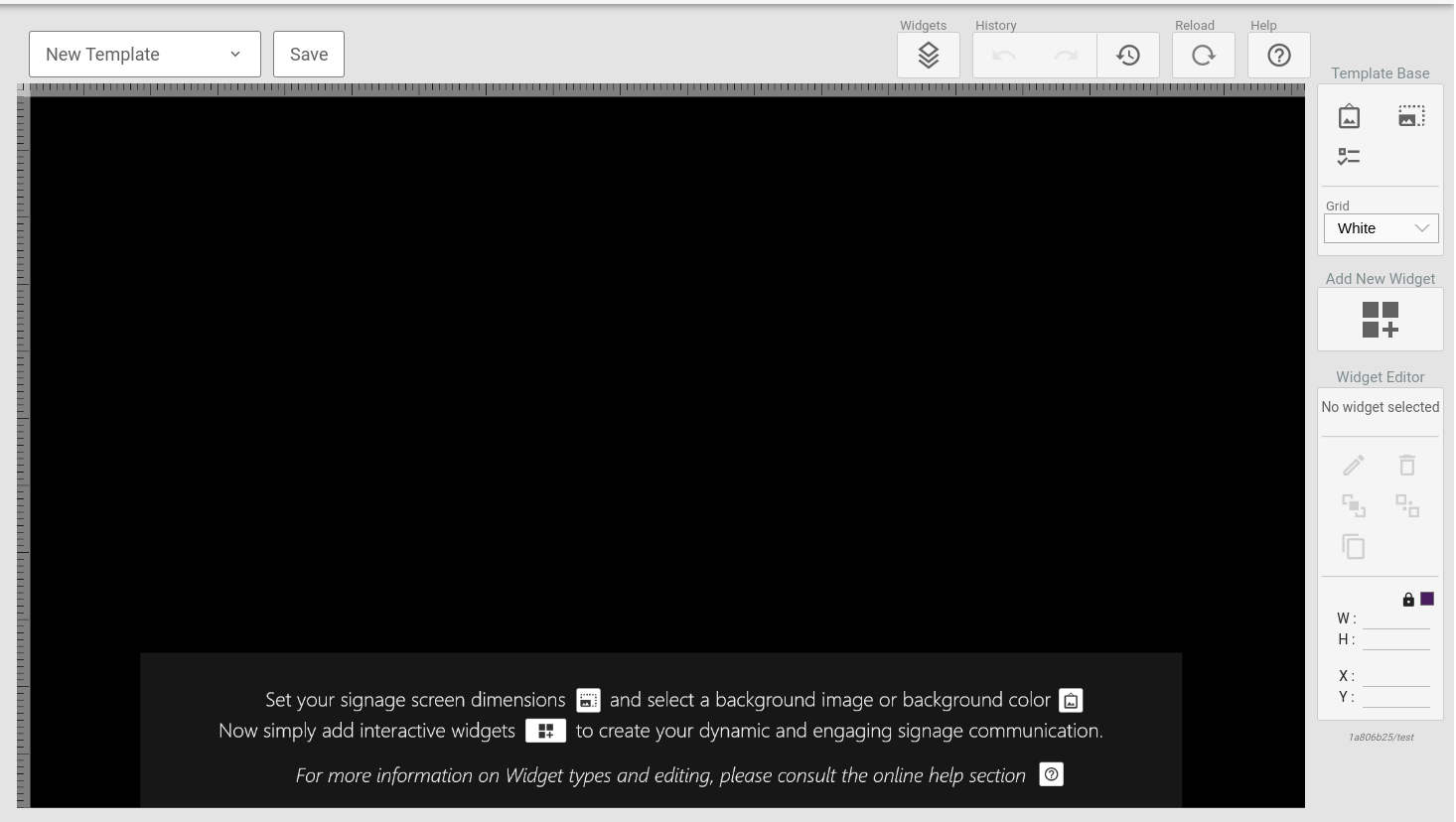
The three entries under this section are:
¶ Template Background
Clicking this icon will bring up the main template background settings.
In this tool you can select the background color and/or set an image to be used as background. The image resize-mode can be set as:
-
Stretch - the image is stretched to fit the entire template background.
-
Cover - the image is resized to over the template background without changing it's aspect ratio. This might cause the image to be cropped.
-
Contain - the image is resized to it bigest size possible whist fitting inside the template background without changing the aspect ratio. This might cause the background to to be entirely filled by the image.
¶ Template Size
Clicking this icon will open the template size configuration tool. Here you can select from a predefined set of resolutions, or you can set your own custom resolution. Note that the editor will scale the viewport to fit in your browser, so even when working on high-resolution templates you will see the entire template viewport.
¶ Template Display Conditions
This setting is only usefull when working with room boards and wayfinding!
Clicking this icon will bring up the display conditions tool. Display conditions are special rules that will be used to determine if the template should be displayed or not, even when part of a timeslot in a playlist.
There are two main sets of data to base the conditions on:
-
Wayfinding events - these are any events schedules for locations to which the screen displaying the template has a wayfinding configuration. For this data one can set a number of minutes prior to the first event and a number of minutes after the last event in which the condition will still be considered met.
-
Location events - there are any event scheduled for the location to which the displaying screen is bound. For this data one can set a number of minutes prior to the event that will still count as the condition being met.
For both types of conditions the negated counterpart can also be set. This makes it easy to create an inverted condition that is to be displayed when there are no events
Example: Wayfinding
Example: Location
A display is mounted outside a meetingroom and bound to that location in the system.
The current template will display the ongoing and next meeting. The customer wants
the display to start showing an upcoming event 30 minutes prior to the event starting.Use the Location Events condition with the Display this template when there are
events setting and Include events before they start set to 30 minutes.
One can also enable the override all setting that causes ONLY this template to display if the condition is met. Overriding ALL other content in the current timeslot.
¶ Widgets
A page can hold multiple elements called widgets. Widgets are specialized components that renders spesific data based on a configuration.
Elements can be styled using CSS as part of the per element configuration, or styling can be done on the page level.
¶ Text Box
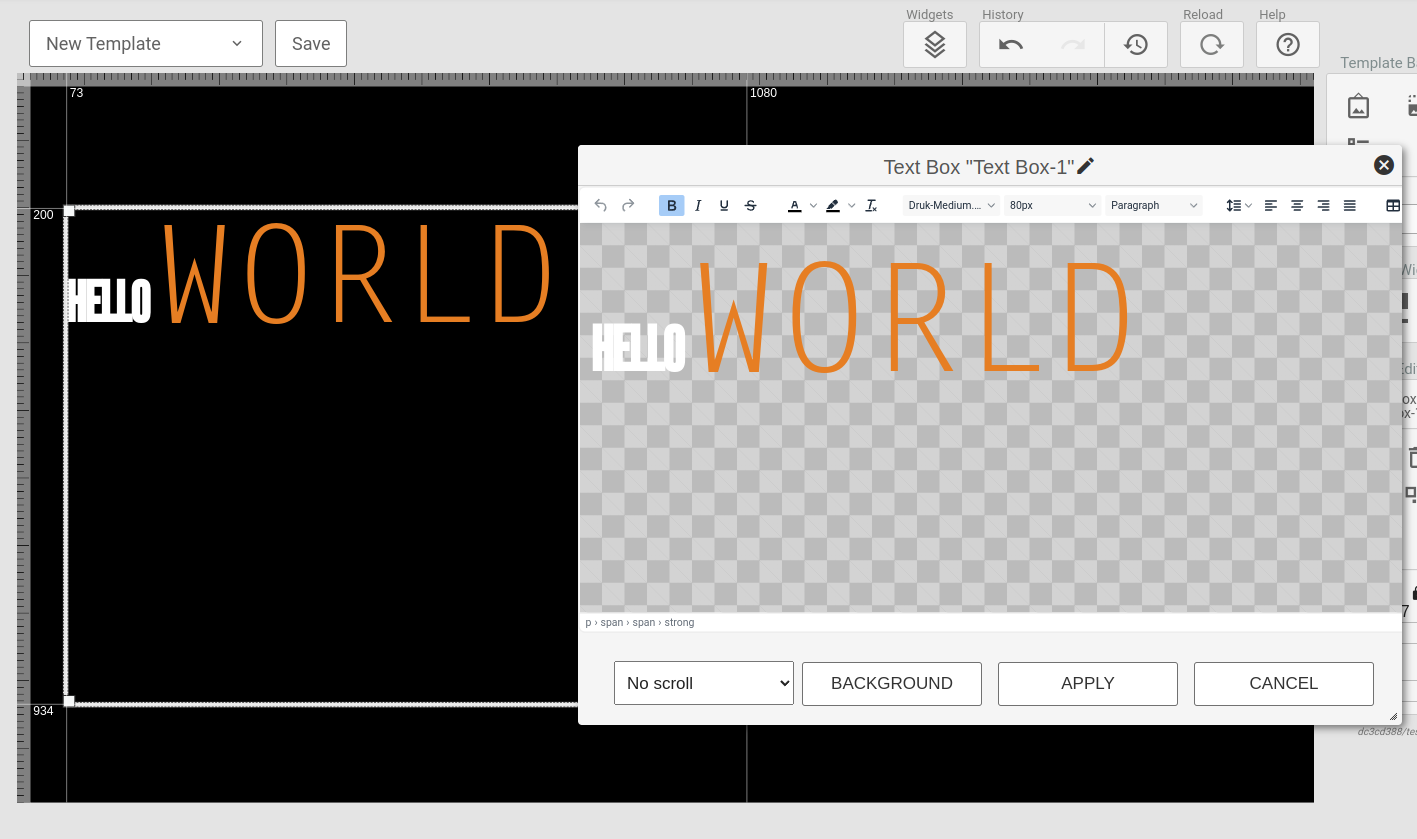
The Text Box widget provides a what you see is what you get editor for crating static text sections. The widget does support templating and dynamic functions.
¶ Clock
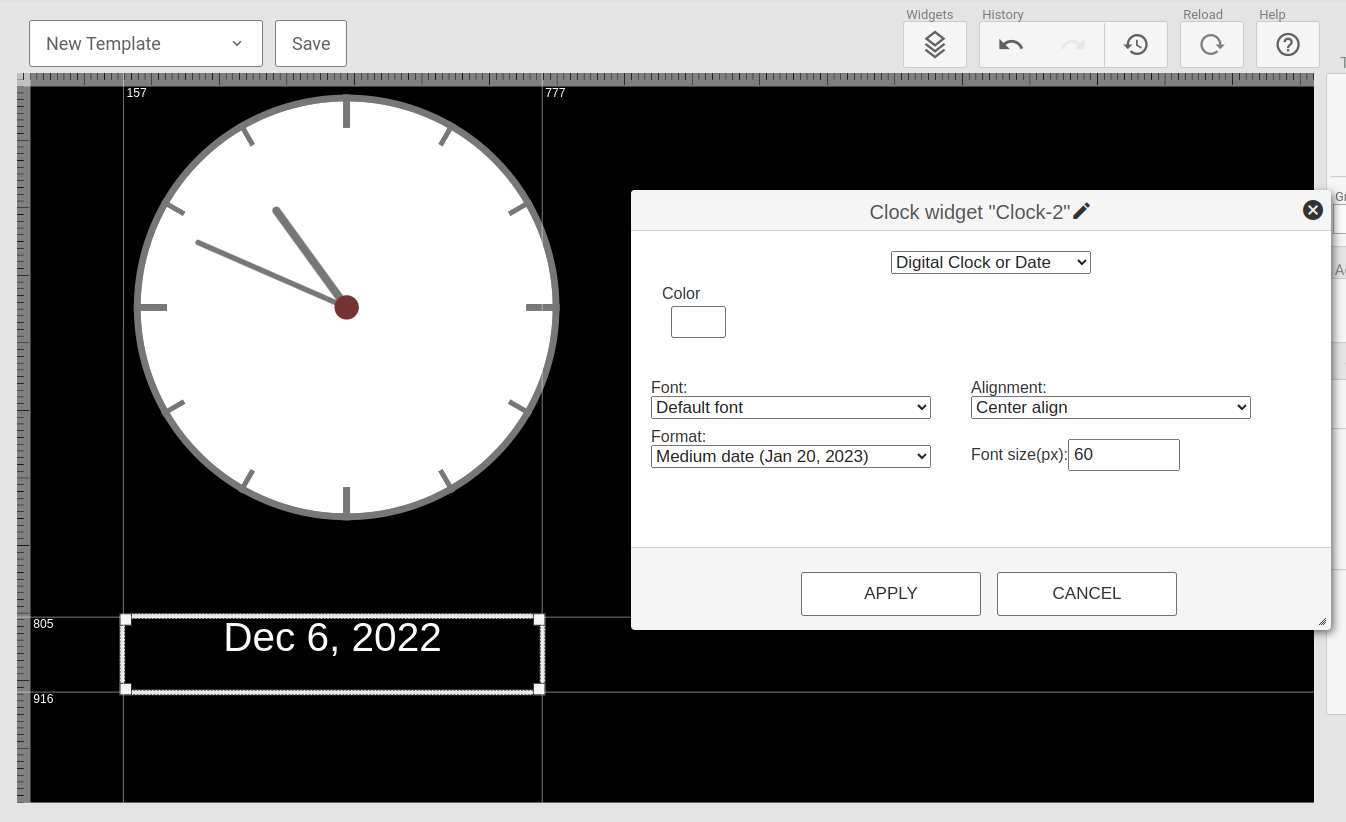
The Clock widget provides a self-contained clock and date display widget that can render both a analogue clock or digital output in various colors and formats.
¶ Video
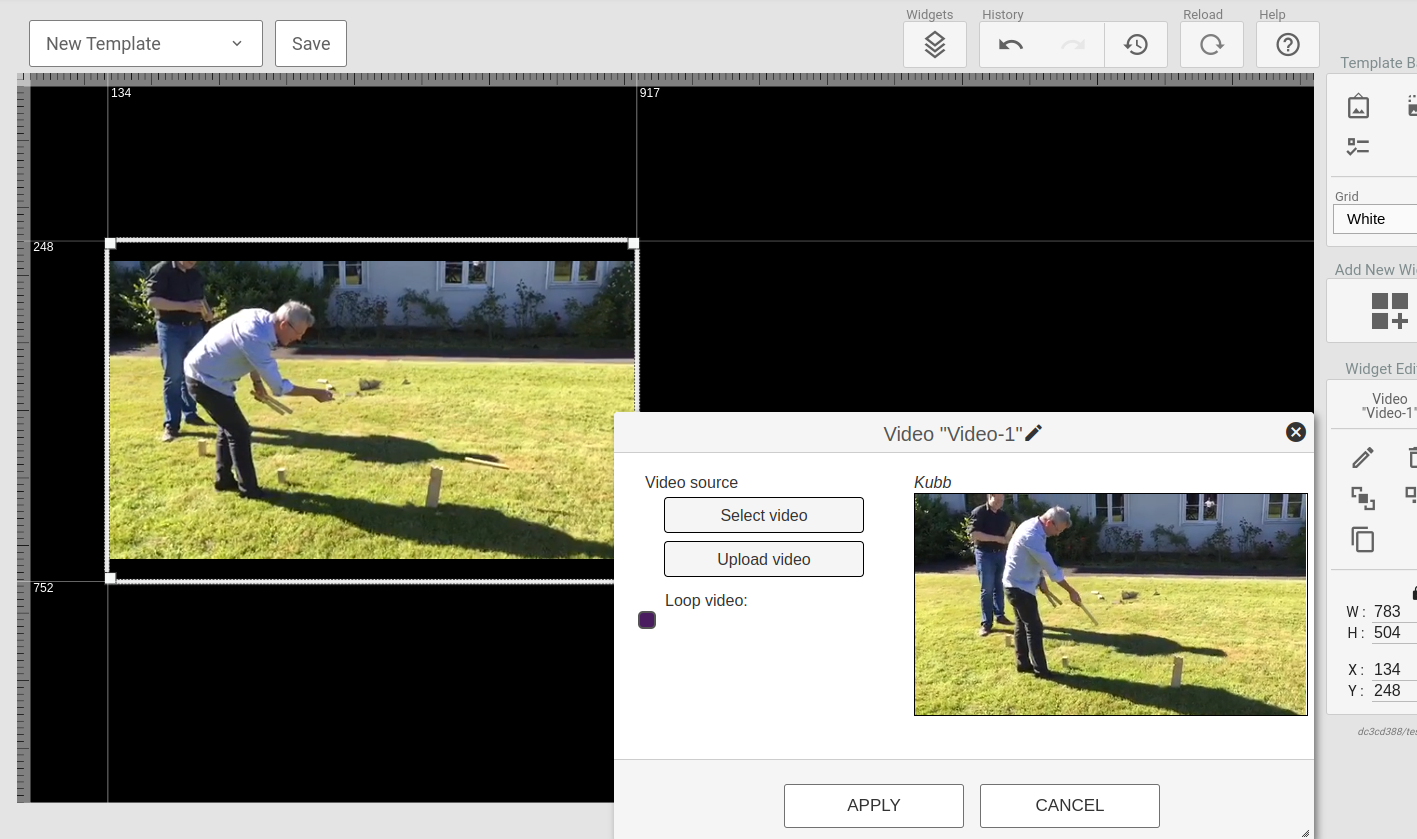
The Video widget provides a mean of diaplaying a video in an area of the template. The video can be selected from the uploaded video-resources.
¶ YouTube
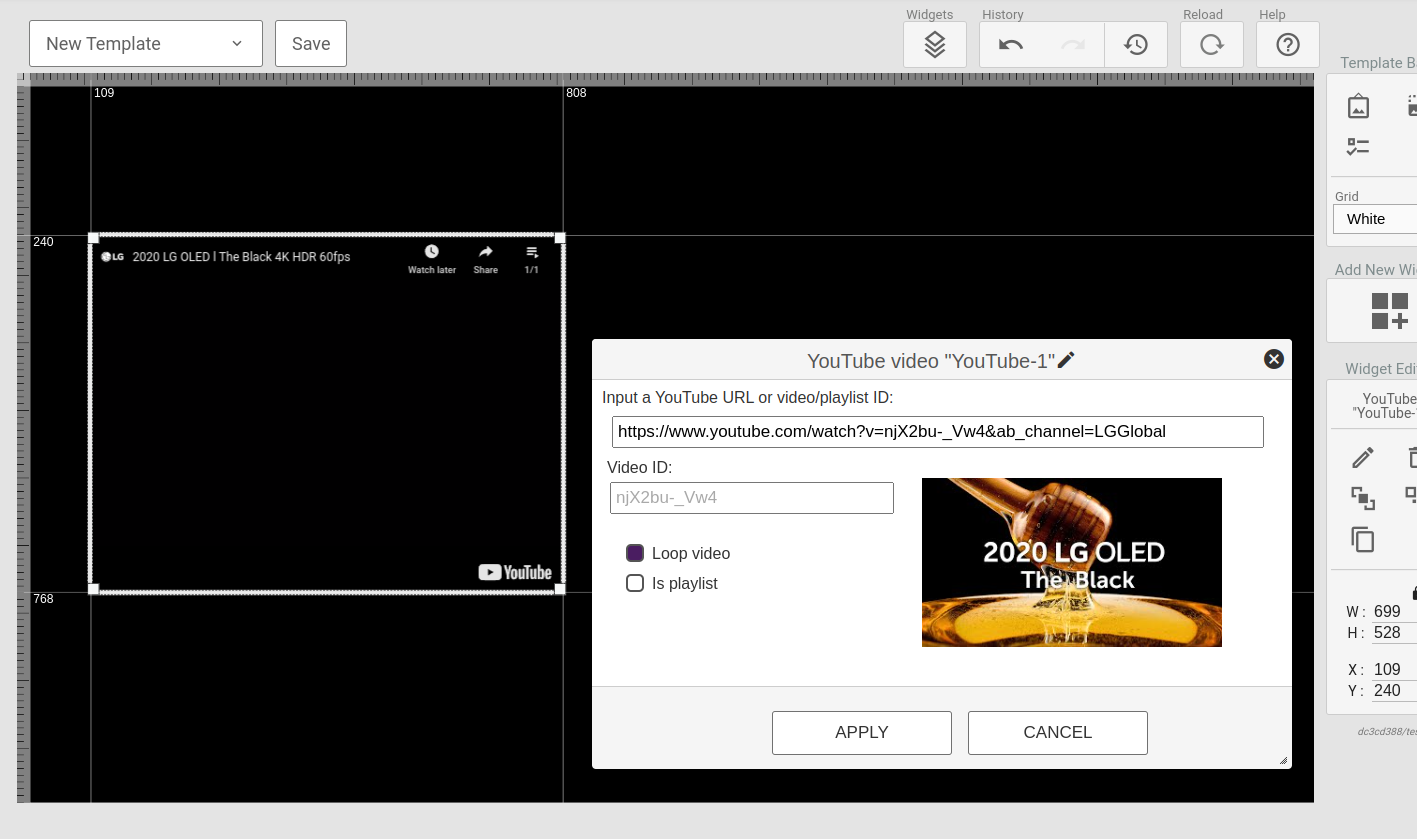
The YouTube widget provides an option to play a video or playlist from YouTube. This widget is Best-effort meaning certain displays might not support it based on their browser capabilities.
The configuration tool allows you to search for video via YouTube URLs or video/playlist IDs.
¶ Playlist
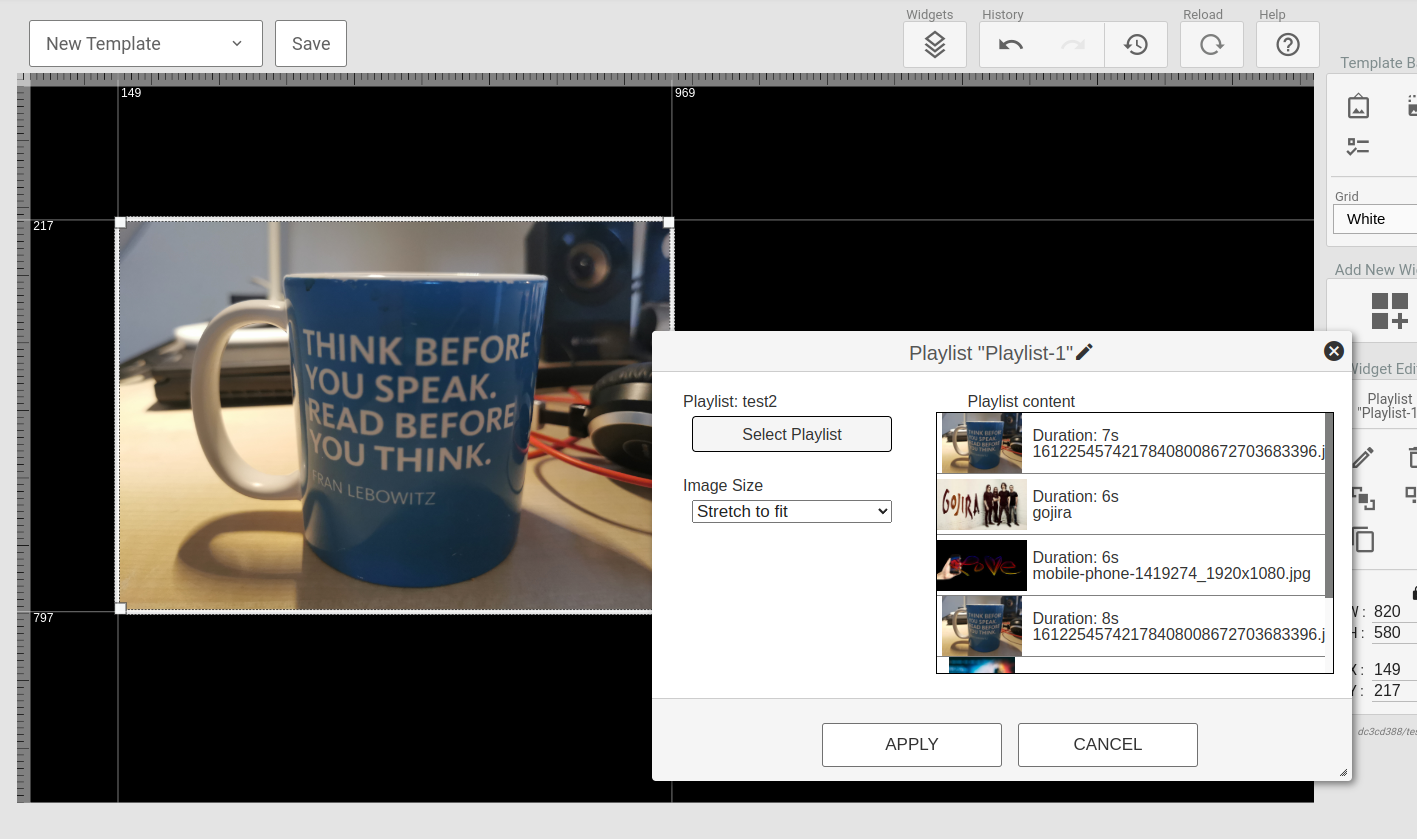
The playlist widget supports displaying a playlist of images and videos within an earea of the screen.
NOTE: The playlists cannot contain templates!
¶ Document
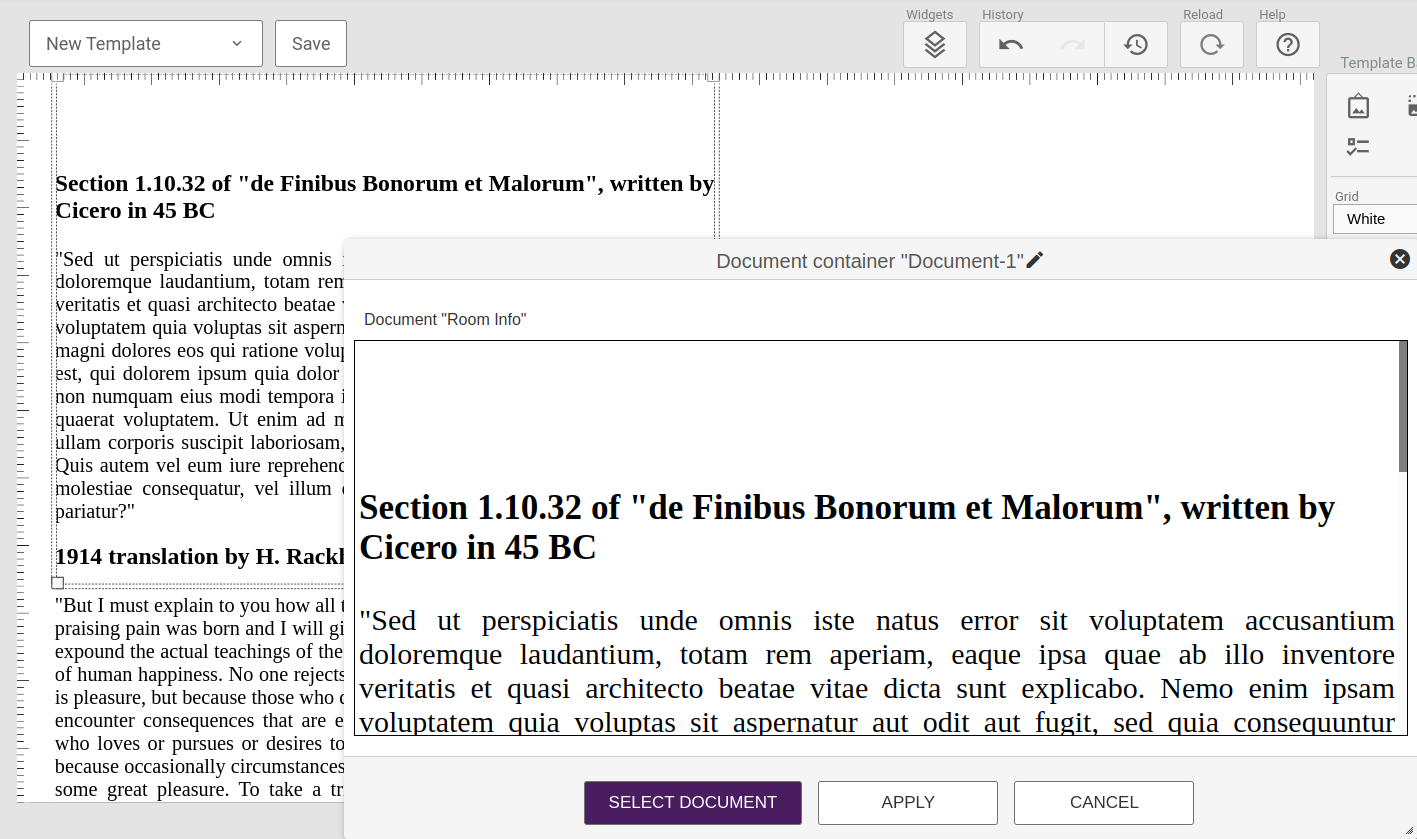
The document widget allows one to display the content of a document. This can allow users without access to the template editor to change the content of a template.
The configuration window will allow you to select and preview a docuemnt. To edit the document you need to visit the Content->Documents section of the management portal.
¶ API-Template
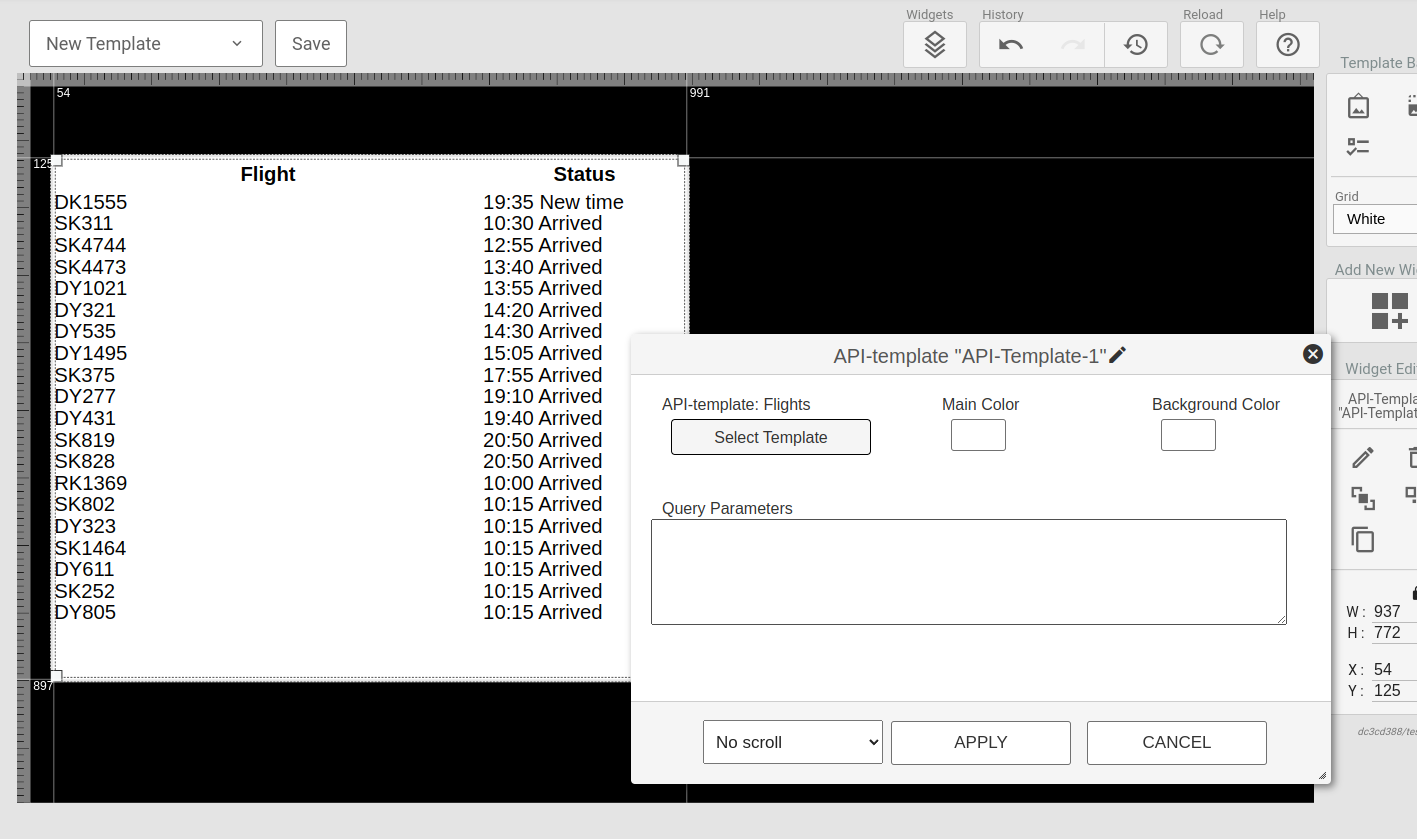
This widget will display the output of an API-template fetching and converting data from a remote HTTP source. Read more here.
¶ WebPage
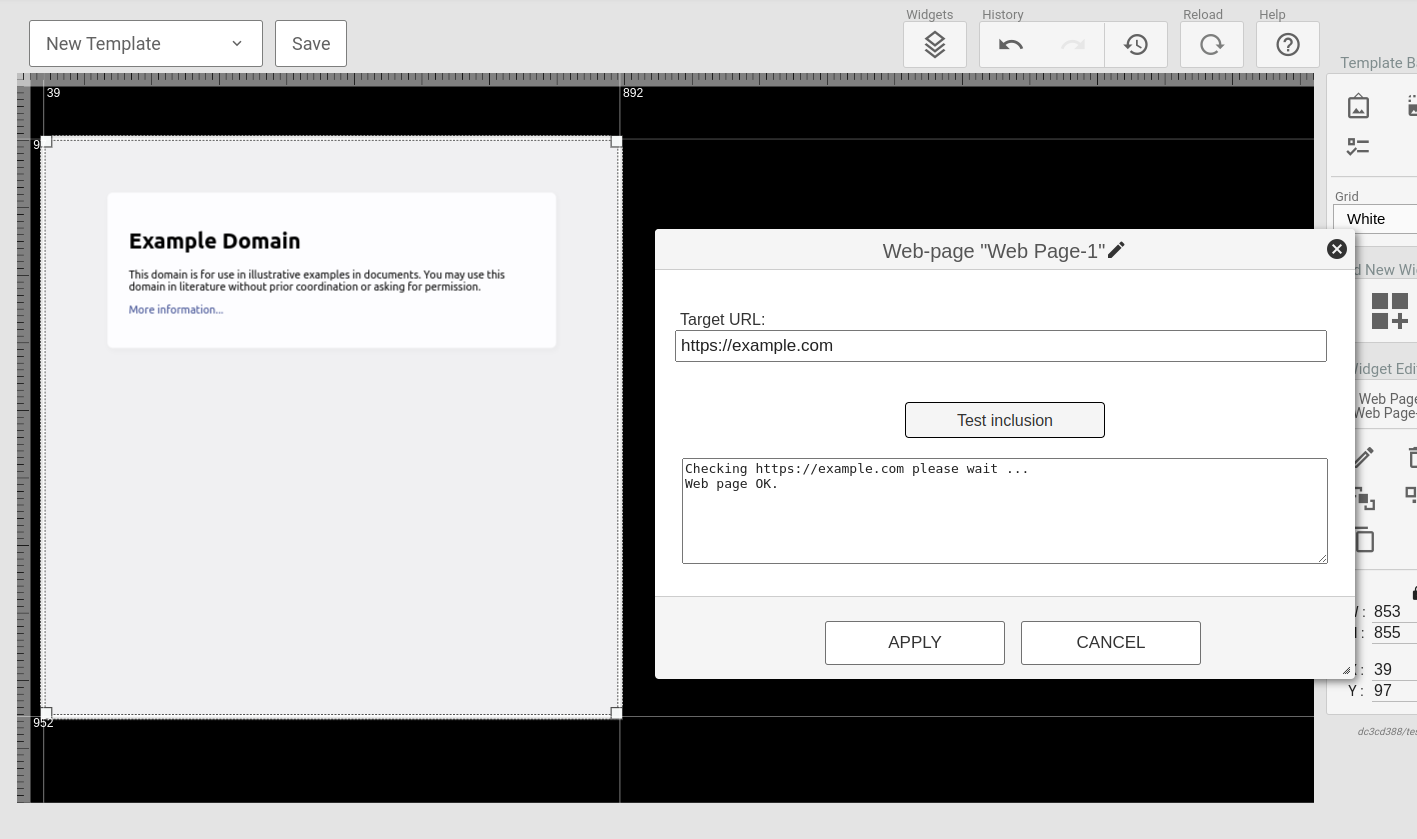
The WebPage widget will display content from a provided URL in an iframe, embedding a complete webpage.
To embed a webpage, certain configurations need to be present in the web-server hosting the page. A test function is included in the configuration tool to verify the inclusion capabilities of a URL.
¶ QR-Code
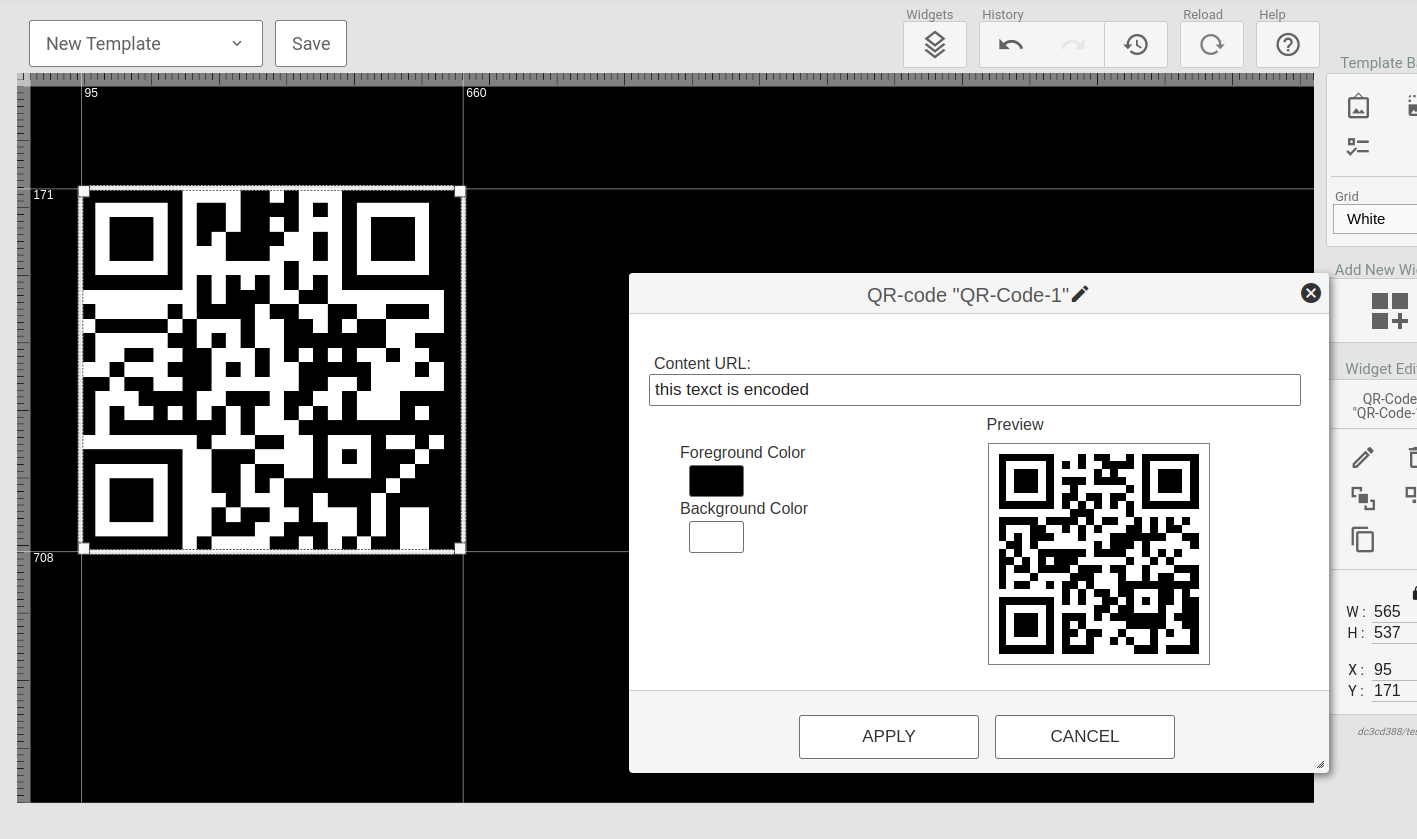
The QR-Code widget encodes a text(this can be templated) as a QR-code displaying in the widget area. The foreground and background colors can be set(including transparency).
¶ Container(advanced)
The Container is an advanced widget inherited from the interactive menu page system.
Read more about it here.
¶ Room Board
NOTE This widget is only available if the site has the events license
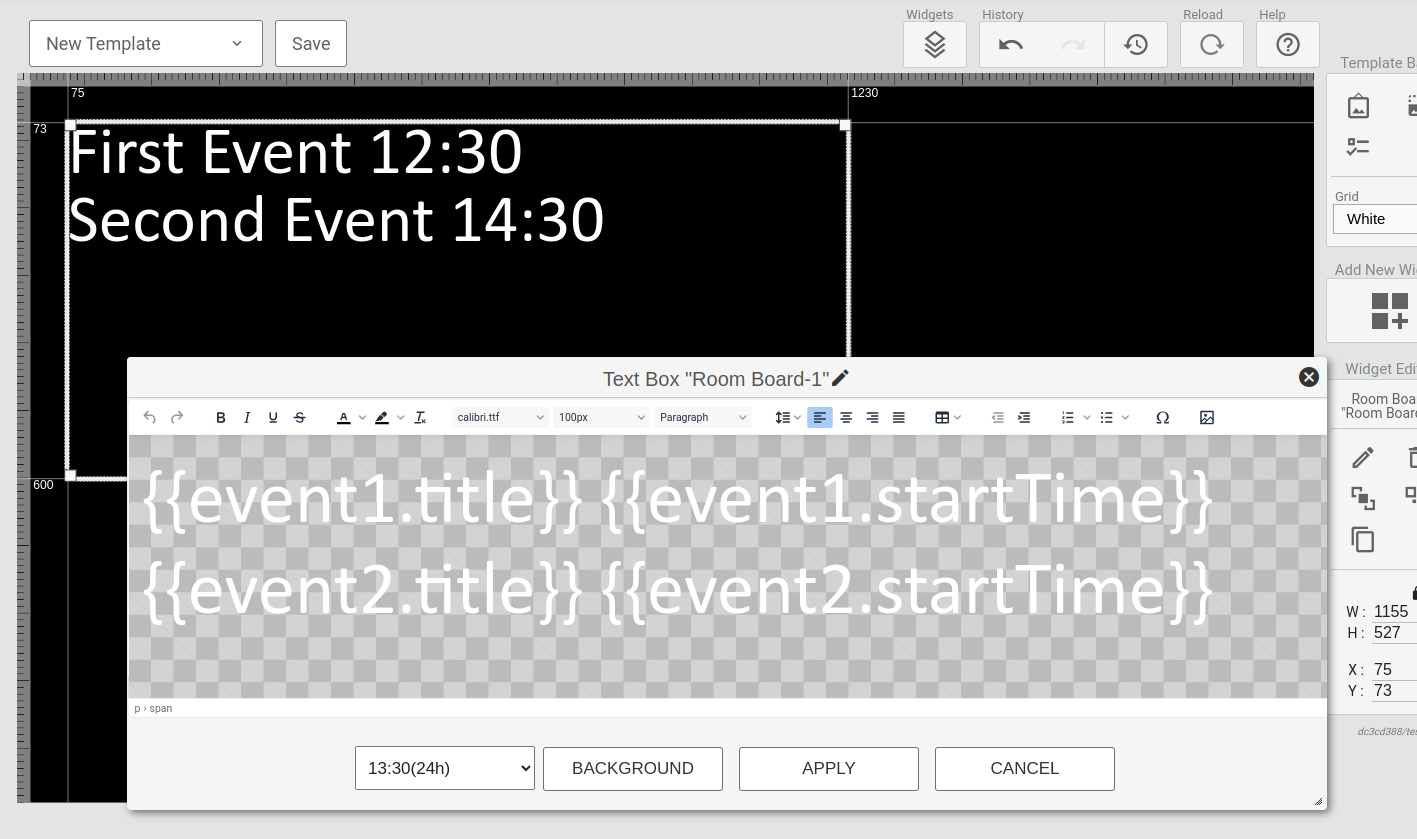
The room board widget provides an WYSIWYG editor just like the Text Box, but this widget also offers templated access to the following data:
{
   event1: {
      title: '',
      host: '',
      info: '',
      startTime: '',
      endTime: ''
   },
   event2: {
      title: '',
      host: '',
      info: '',
      startTime: '',
      endTime: ''
   }
}
The startTime and endTime properties will be formatted according to the format selected in the widget configuration.
So to display the title of the current/upcoming first event use {{event1.title}} in the text.
¶ Wayfinding
NOTE This widget is only available if the site has the events license
¶ Templating
In the Text Box and Container widgets you can use the Mustache templating language to expand variables in the content. For certain other widgets such as the QR-code and WebPage, templating might be used in the widget configuration settings.
Let's assume we have the following templating data available as "info":
{
  "title": My Title",
  "text": "Some text"
}
For a markup section we could then set:
<div>
 {{info.title}}<br>
 {{info.text}}
</div>
The mustache rendering engine will then output:
<div>
 My Title<br>
 Some text
</div>
The following objects are available to the templating engine:
-
settings
A selection of system settings are available via the settings object. Settings might differ from screen model to screen model. See Global Variables for a list of populated variables. -
event1 / event2
Escaping of variables
All variables are HTML escaped by default. If you want to return unescaped HTML, use the triple mustache: {{{name}}}.This is useful in situations where you need a working URL, e.g. in slideshow, webcontent or webrequests.
¶ Global variables
| Variable | Content |
|---|---|
| settings.locationName | The name of the location the TV is registered to |
| settings.duid | The unique device-ID of the screen |
| ------------------------- | --------------------------------------------------------------------- |
| roomBoard.locationName | The name of the location for the first upcoming event. If no upcoming events, the name of the primary location of the display(signage displays can be assigned multiple locations). |
| ------------------------- | --------------------------------------------------------------------- |
| softAP.enabled | true if the built in TV softAP is enabled |
| softAP.ssid | SSID of built in softAP |
| softAP.key | Key of built in softAP |
| ------------------------- | --------------------------------------------------------------------- |
| media.playingNameTv | Get the name of the current playing TV channel if available |
| media.playingIdTv | Get the ID of the current playing TV channel if available |
| media.activeSubtitleLanguage | Get the (iso-639-1)language code representing the current-active subtitle language. |
| media.activeSubtitleFlagUrl | Get a relative path to a language flag icon representing the current-active subtitle language. |
| ------------------------- | --------------------------------------------------------------------- |
¶ Functions
Certain dynamic functions can be called from the Markup of containers. These are enclosed within hashes #
Example:
Current time: #getTime(HH:mm)#
Might be rendered as:
Current time: 13:00
The following functions are available:
¶ getTime(format)
Returns the current system time as formatted by the format parameter.
Format:
m - minutes
mm - minutes, padded to two digits
h - hours, 12 hour format
hh - hours 12 hour format, padded to two digits
H - hours, 24 hour format
HH - hours, 24 hour format, padded to two digits
D - day
DD - day, padded to two digits
DDD - weekday name(english), short version
DDDD - weekday name(english), full version
S - numer endring for day of month: th, st, nd or rd
M - month
MM - month, padded to two digits
MMM - month name(english), short version
MMMM - month name(english), full version
YY - year(two last digits)
YYYY - full year
t - AM/PM indicator a or p
tt - AM/PM indicator am or pm
T - AM/PM indicator A or P
TT - AM/PM indicator AM or AM
o - Timezone offset
Z - UTC offset string(eg UTC+0200)
o - short UTC offset string(eg +0200)
Example getTime("HH:mm DD.MM.YY")
¶ formatTime(timestamp, format)
Format a timestamp for display. The timestamp string must be on a format that can be parsed by the JavaScript Date object.
The format definition follows the same syntax as for the getTime function.
¶ getEpgCurr(channelId)
Returns the current running program for the defined channelId
¶ getEpgDescCurr(channelId)
Returns the description of the current running program for the defined channelId. Note this can be a long string and formattong for overflow must be taken care of in markup.
¶ getEpgCurrProgress(channelId)
Returns an integer between 0 and 100 representing the progress of the current running programme. Can be used to build a progress bar.
¶ getEpgNext(channelId)
Returns the next program for the defined channelId
¶ getEpgDescNext(channelId)
Returns the description of the next program for the defined channelId. Note this can be a long string and formattong for overflow must be taken care of in markup.